Anthony Meirlaen
•
Product Updates
We spent the last month focused on how you organize and find events in Planning. Here's what's new.
Event labels

You can now create custom labels and assign them to events, so you can tag things like "VIP," "needs deposit," or "confirmed" and spot them at a glance. Labels are managed from Settings, and they're also available to automations - you can set or clear a label automatically based on rules you define, for example when a conversation reaches a certain stage. Labels can be assigned and removed on conversation events too, so your team and your automations stay in sync on how an event is tagged.
Quick filters for events
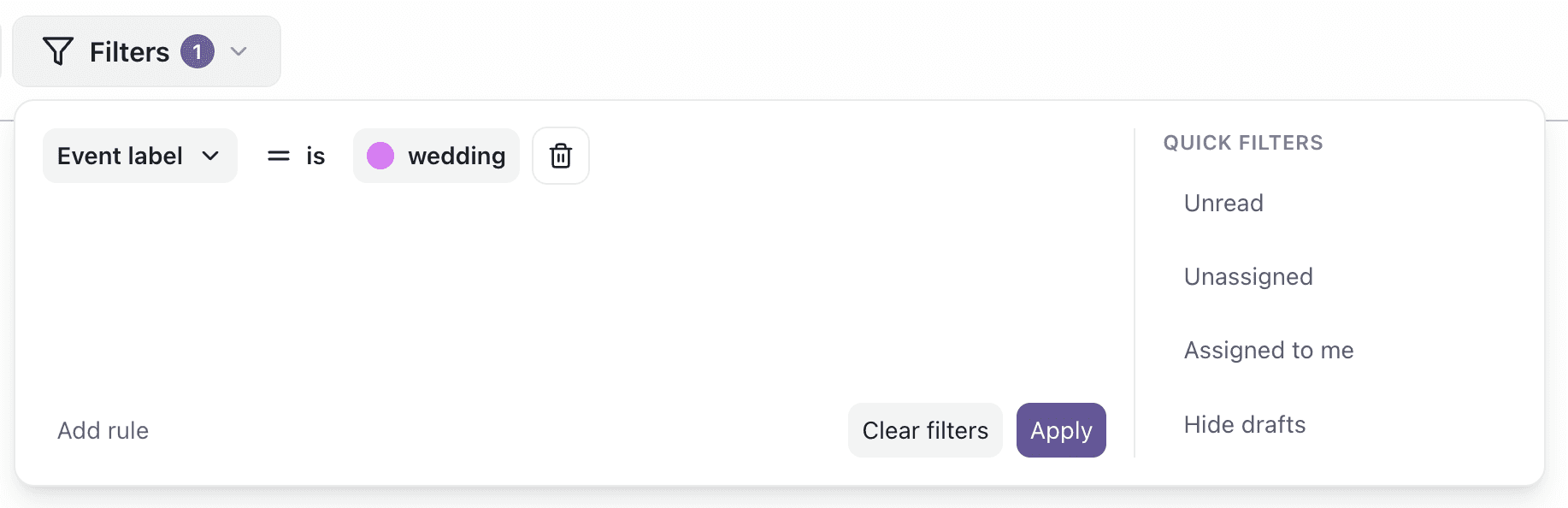
The events list and board got a redesign, and the headline feature is quick filters: one-click filters for the views you check most often, backed by proper structured filtering under the hood rather than just a search box. Build a filter, save it as a quick filter, and it's there whenever you need it. We also fixed an issue where a quick filter's highlight would stick around after you edited its underlying rule manually, so what's highlighted always matches what's actually applied.
A redesigned Kanban board
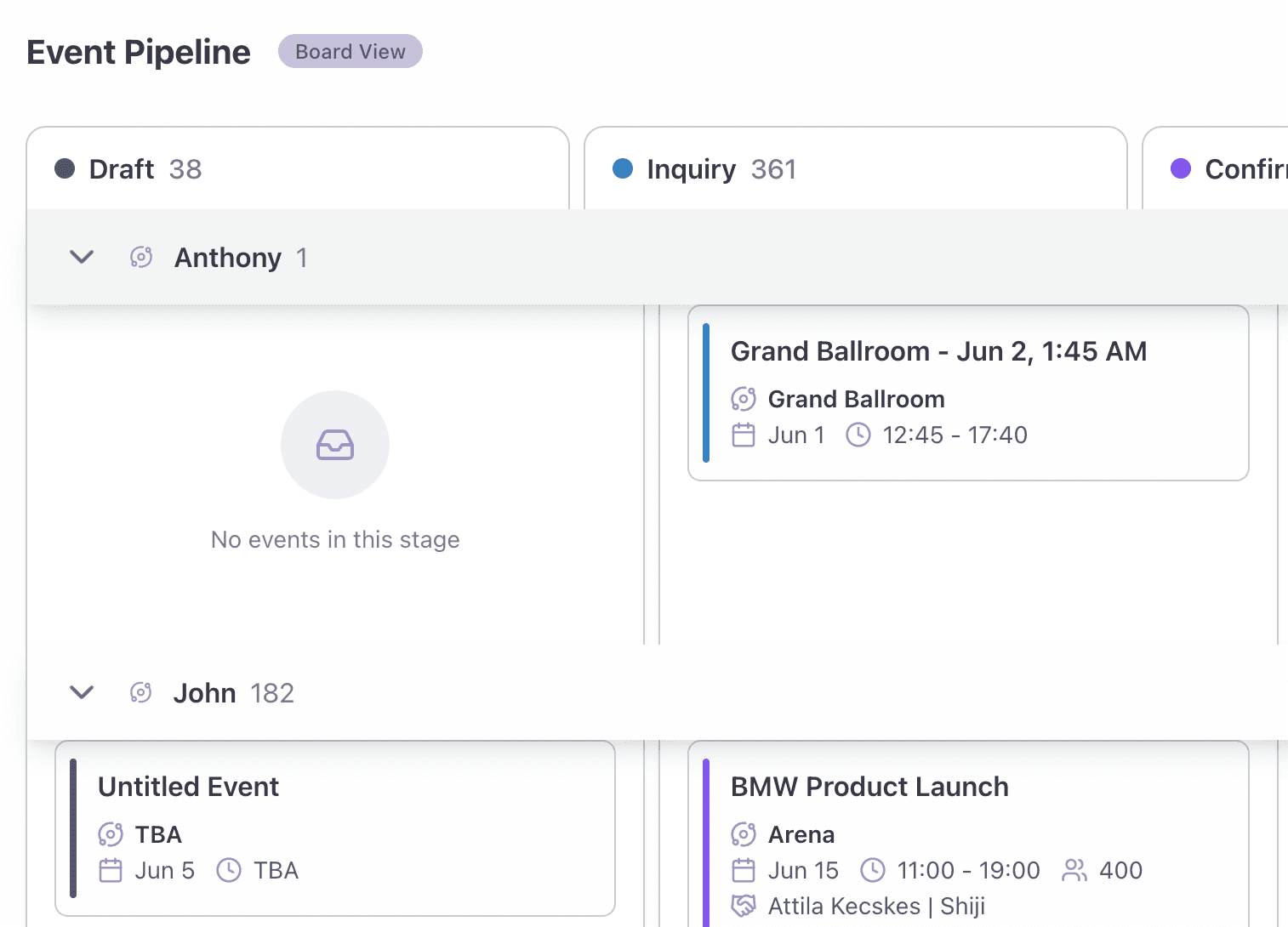
The Kanban board now groups swimlanes by event manager, so you can see events organized by who owns them, not just by stage or space.
Smaller updates
Unread event tracking
Events created by your assistant are now tracked as unread at the account level, so it's clearer what's new across your whole team, not just for the person who was looking at the time.
Multi-day schedule view
The agenda layout for multi-day schedules is easier to scan, and opening the schedule view now starts from the date you actually selected instead of jumping back to today.
Editing allocations
Editing an event allocation now opens the calendar in day view automatically, and the key info date range stays valid as you edit it instead of letting you land on an inconsistent state.
Event printing
Printing an event is fixed and working again in production, with a dedicated print button wired up on the event view.
Settings form drafts
If you dismiss a settings form by clicking away, your in-progress draft is now kept instead of discarded.
Curated planning experiences
You can now curate which planning experiences show up per inbox in the widget, so guests only see the options relevant to that inbox.
Floorplan (DXF) import
DXF floorplan imports now handle units correctly and render as expected.
Inbox space cards
Space and experience cards in the inbox now render consistently with how they look in the widget.
Spaces default schedule
New spaces default to a 24/7 schedule when you enable scheduling, instead of starting blank.
Anthony Meirlaen
Product Updates
